If you run a server on a newer client, you have already met this: you open data\msgstringtable.csv to change one line of text, and every cell looks like this.
TVNJX0RPX1lPVV9BR1JFRQ==,64+Z7J2YIO2VmOyLreuLiOq5jD8=
TVNJX1NFUlZFUl9DT05ORUNUSU9OX0ZBSUxFRA==,7ISc67KEIOyXsOqysCDsi6TtjKg=
The older clients kept their text in plain .txt and .lub files you could edit in Notepad. The newer ones moved it into .csv tables and wrote every single cell as Base64, so the file is unreadable until something decodes it. GRF Editor does this on your desktop. Now the site does it too, in your browser, and it lets you edit the table while it is open.
https://ratemyragnarok.com/tools/csv/
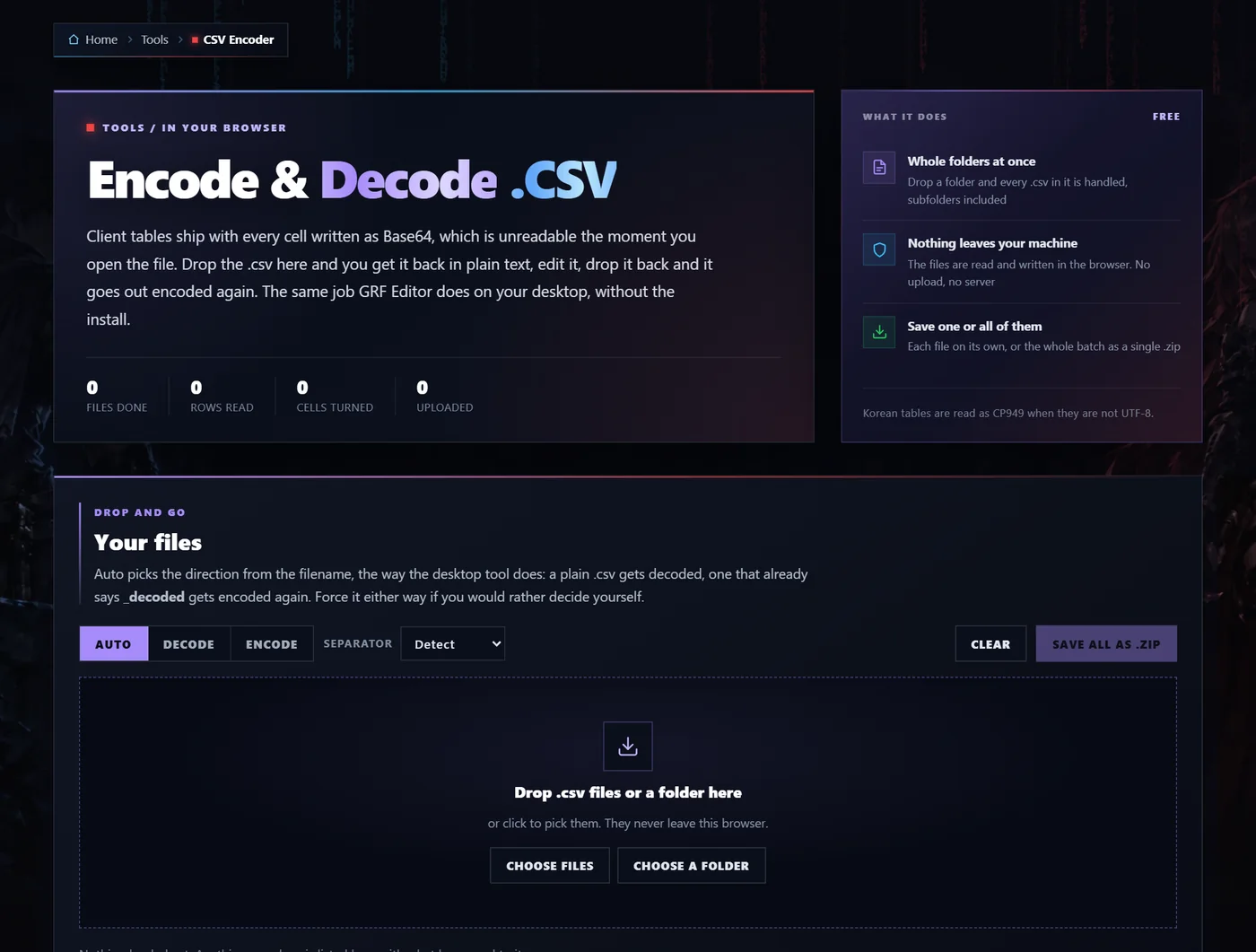
Nothing is uploaded. Your file is read, decoded, edited and saved back by your own browser, so a table you have not published yet never leaves your machine.
What it is for
These are the files it is meant for:
data\msgstringtable.csv in a recent client, which is every system message the game shows: login errors, party and guild messages, skill failures, the lot. 4,466 rows in the current kRO client.data\simplemsg\msg_emotion.csv and the other small tables next to it.- Anything else your client ships as a
.csv with Base64 in it.
This is what the real kRO table looks like once it is decoded. Korean, because that is the client it comes from, and this is exactly the file people translate.
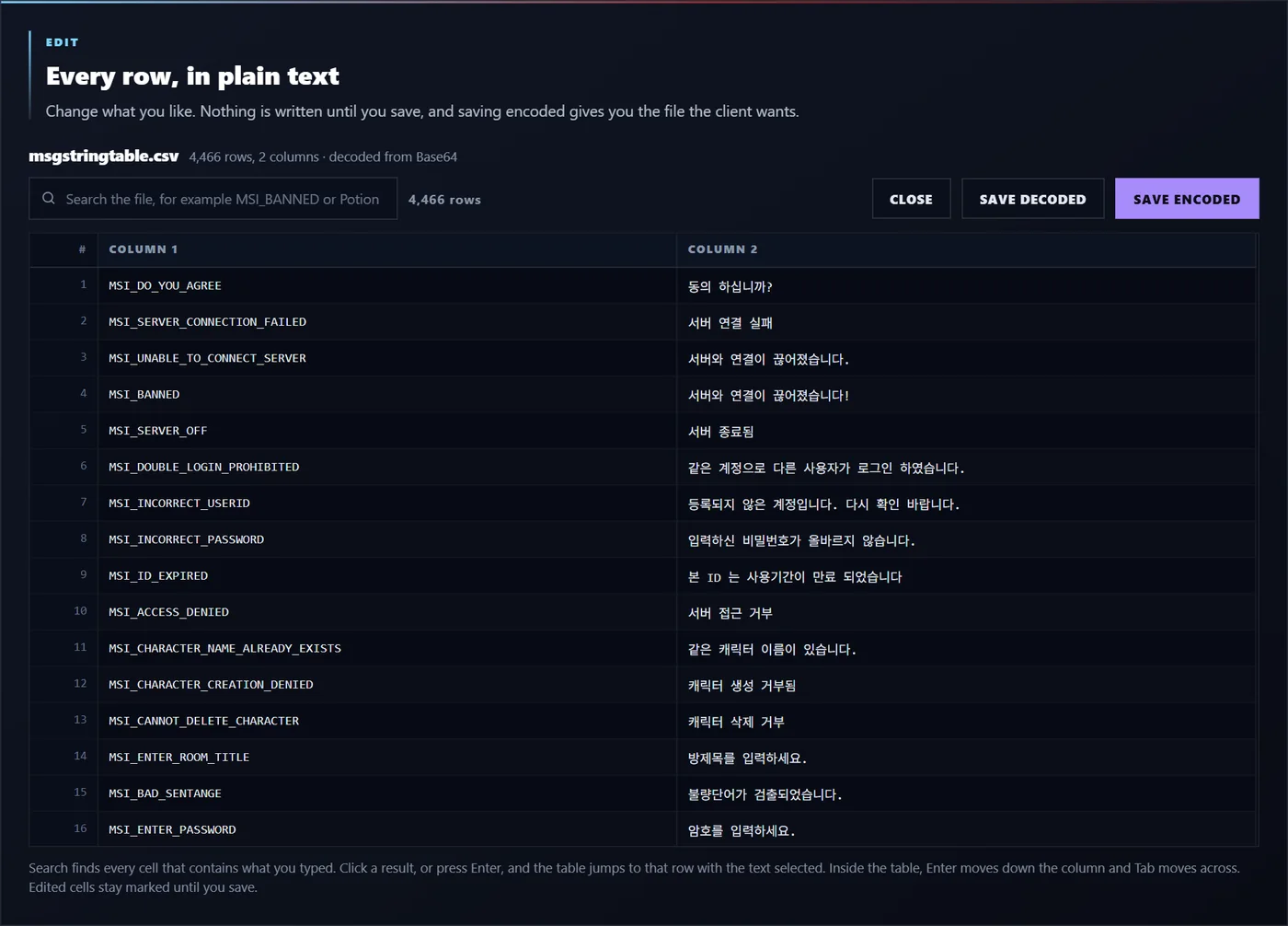
Change what you like in there, save it encoded, put it back in your GRF, and your players see your wording instead of the default.
1. Drop the file in
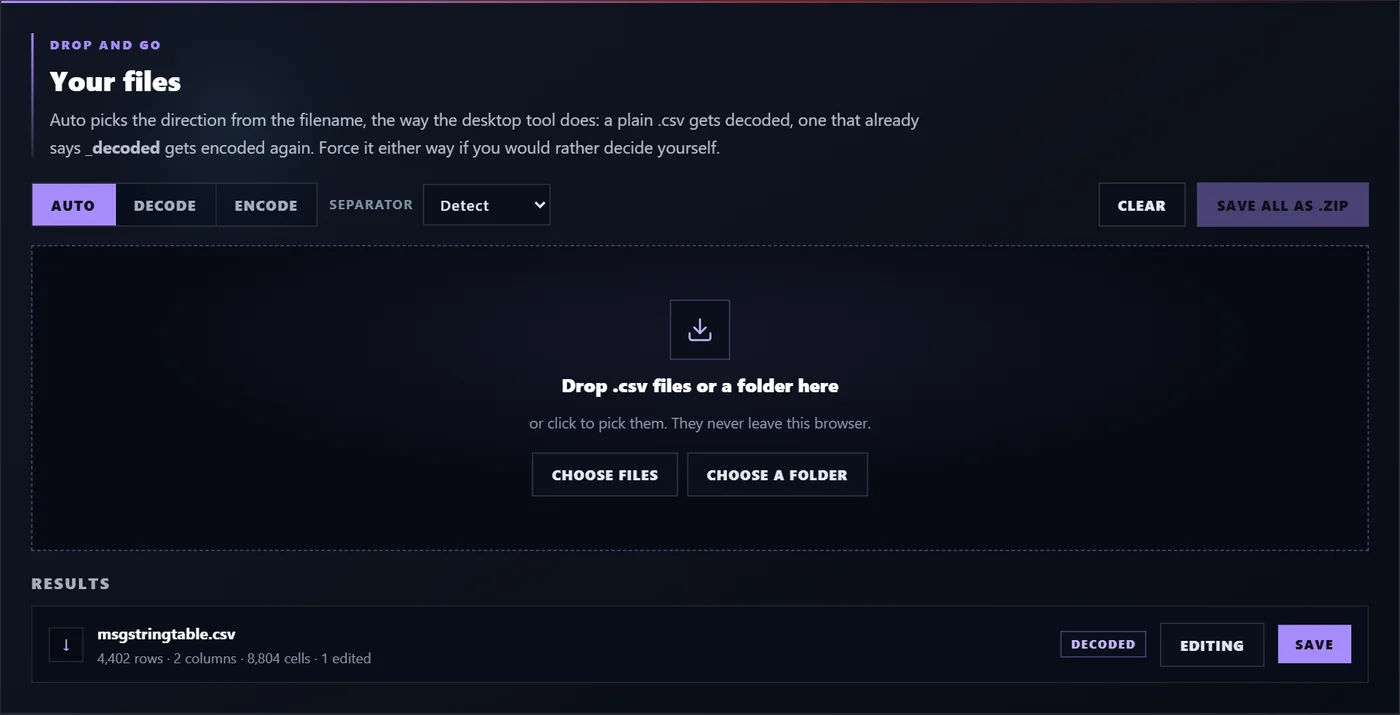
Drag the .csv onto the box, or click it and pick the file. You can drop a whole folder as well, and every .csv inside it, subfolders included, gets handled in one go.

Auto works out what to do from the filename, the same way the desktop tool does. A plain .csv gets decoded. One whose name already says _decoded gets encoded again. If you would rather decide yourself, press Decode or Encode first.
2. Read the whole table
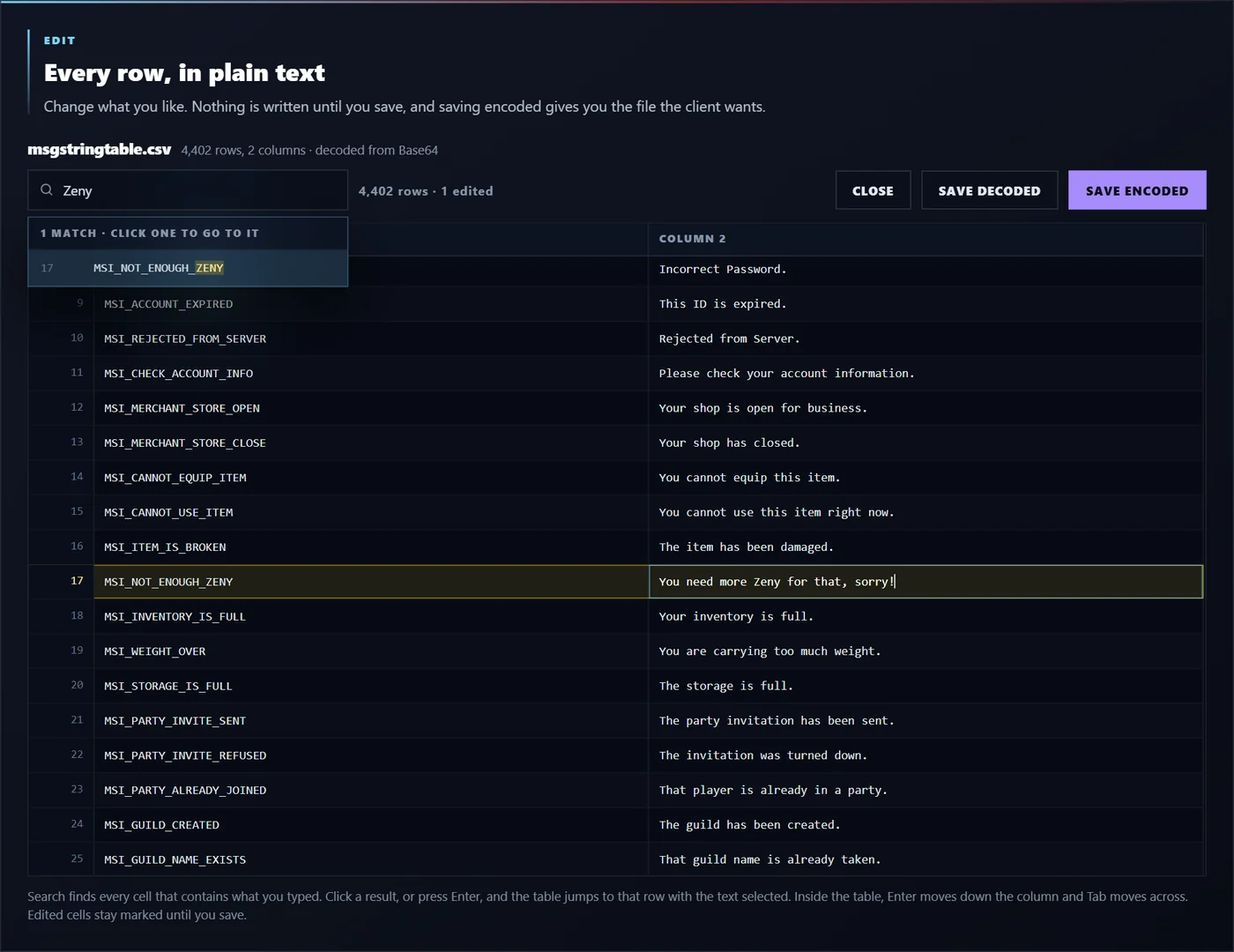
The file opens straight into an editable table with every row in it. The left column is the key the client looks up, the right column is the text your players actually read.
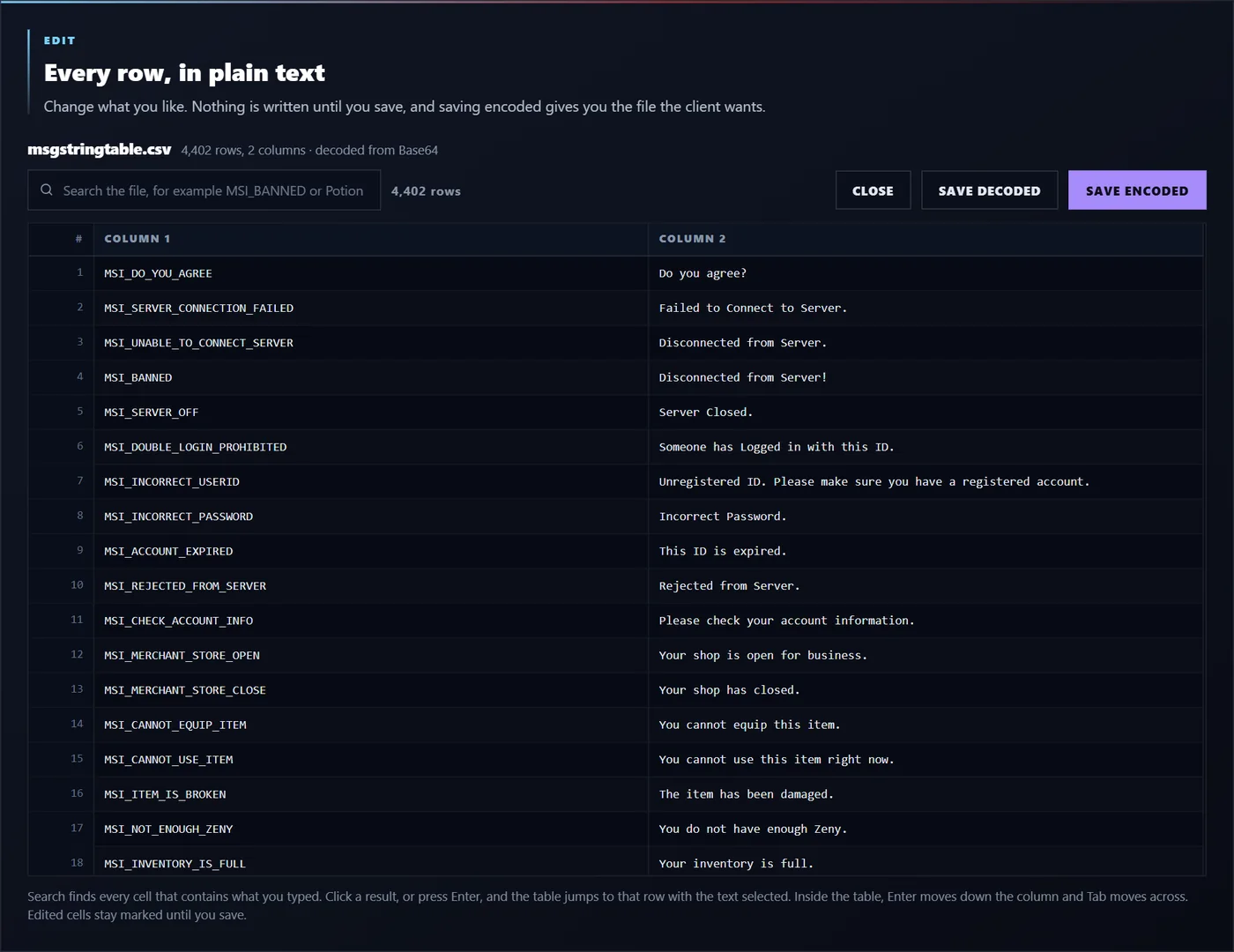
Only the rows on screen are really there, so a 4,400 row table opens in under a second and scrolls smoothly on an old machine. Under the name it tells you how many rows and columns it found, and where the text came from.
3. Find the line you want
Nobody scrolls through four thousand rows. Type in the search box and it lists every cell that contains what you typed, with the match highlighted.
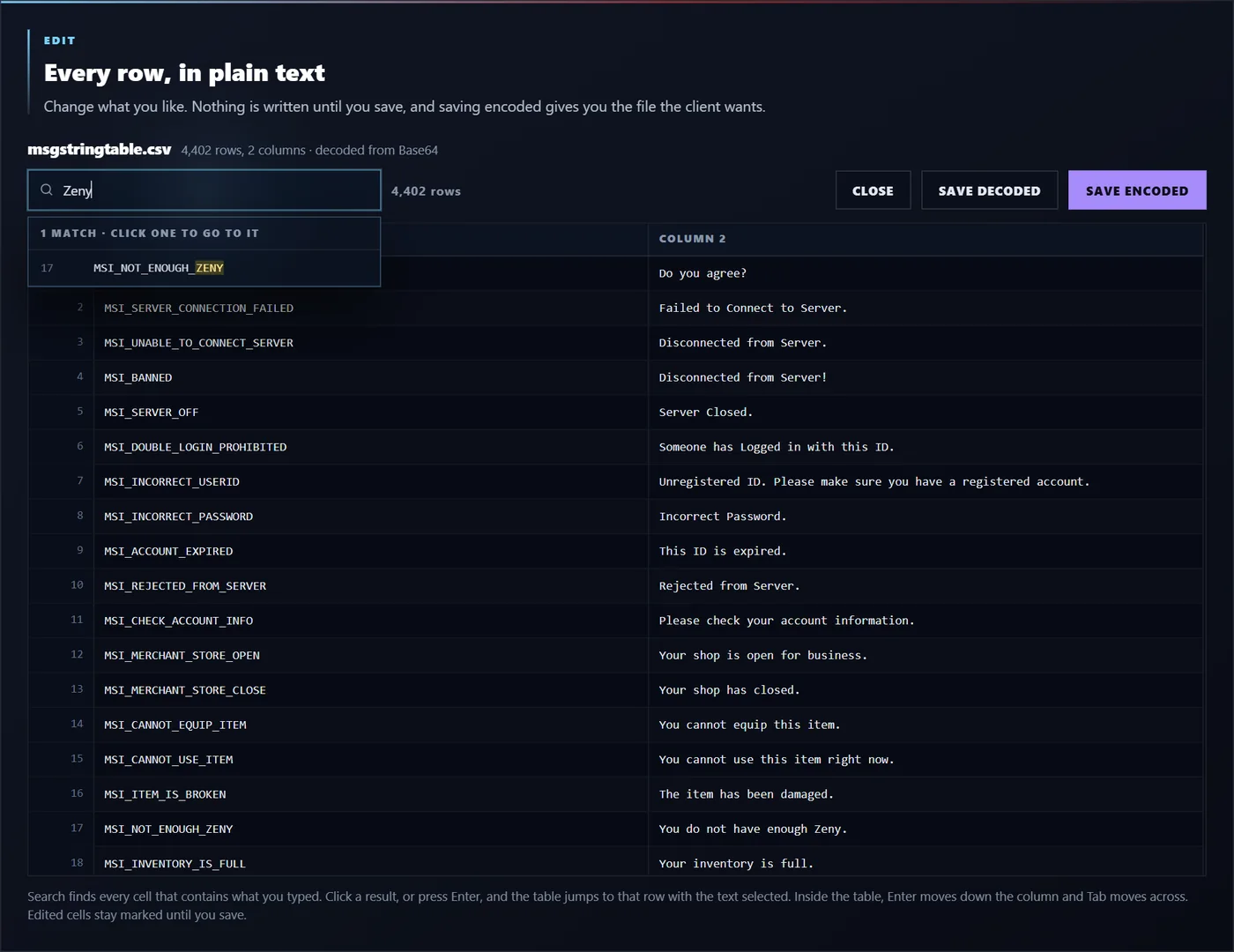
Click a result and the table jumps to that row, lights it up, and puts your cursor in the cell with the text already selected. Enter walks to the next match, Shift and Enter walks back. Nothing gets hidden while you search, so you never lose your place in the file.
4. Change it
Type straight into the cell. Enter moves down the column, Tab moves across, which is what you want when you are working through a list of messages. Edited cells stay marked so you can see what you touched.
5. Save it back
Two buttons, and both are built from your edits:
- Save encoded gives you the file the client wants, every cell Base64 again. This is the one that goes back into your GRF.
- Save decoded gives you the readable copy, which is handy for a translation team, a diff, or keeping in git.
Dropping several files lists them all, each with its own counts and buttons, and there is a Save all as .zip for the whole batch.
Two things worth knowing
It refuses a file that was never encoded. A four character id like 1201 is perfectly valid Base64, so blindly decoding a table that is already plain text turns real values into rubbish. If most cells are plain, the tool says so and writes nothing. There is a "Decode anyway" button for when you know better.
Korean is handled. Decoded bytes are read as UTF-8 first and CP949 after, which is what the older tables use, so Korean text comes out as Korean rather than mojibake. Saving encodes as UTF-8, which is what current clients expect.
Notes
Work on a copy of your client files, not your only one. The tool never writes to your disk by itself, but a bad edit in a table is still a bad edit.
The encoded file is saved as <name>_encoded.csv, following the naming the desktop tool uses, so rename it to msgstringtable.csv when you put it back in the GRF.
Doing it on the desktop instead is fine too: GRF Editor has the same encode and decode built in, and it can drop the file straight back into the archive.
Found a table it chokes on, or want something added? Post it here and I will fix it.
 ItemsWeapons, armor, cards & more
 MonstersStats, drops & spawn maps
 ServersBrowse private server listings
 ReviewsRead honest community feedback
 MapsInteractive world maps
 SkillsAll job skills & descriptions
 QuestsObjectives, monsters & locations
 NPCsNPC & monster sprite browser
 DatabaseFull database overview
 Latest UpdatesNewest items & monsters
ToolsRO client & database integration
StreamersWatch RO streamers live
ForumTalk servers, builds & guides
Latest UpdatesNewest items & monsters
ToolsRO client & database integration
StreamersWatch RO streamers live
ForumTalk servers, builds & guides